
Use the Gravity Form Block in a P4 Page
Get ready to share your Form thanks to adding the Gravity Forms Block in your Planet 4 Page.
📚 Manage Planet 4 > Integrate P4 > Set Up the Form Builder > Use the Form in a Page
Let’s start
Gravity Forms Block
Once your Gravity Forms form is set-up, you can add it into any P4 page or post, just by adding the ‘Gravity Forms‘ block
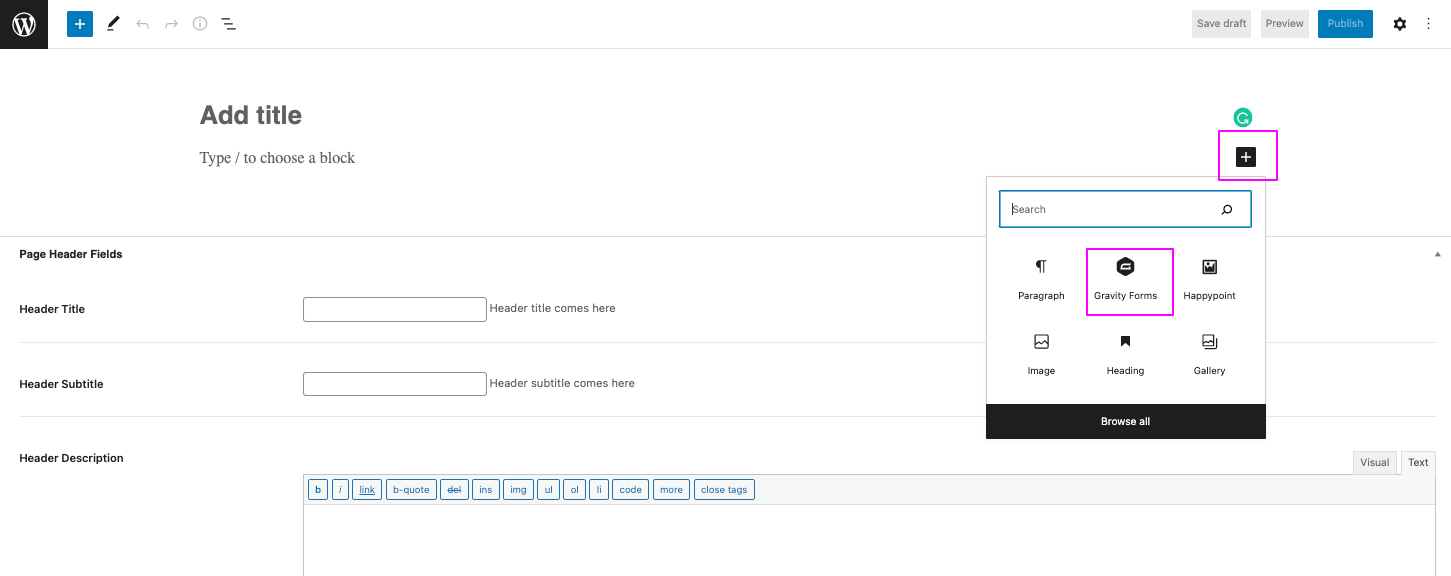
Select the form you just created in the dropdown:
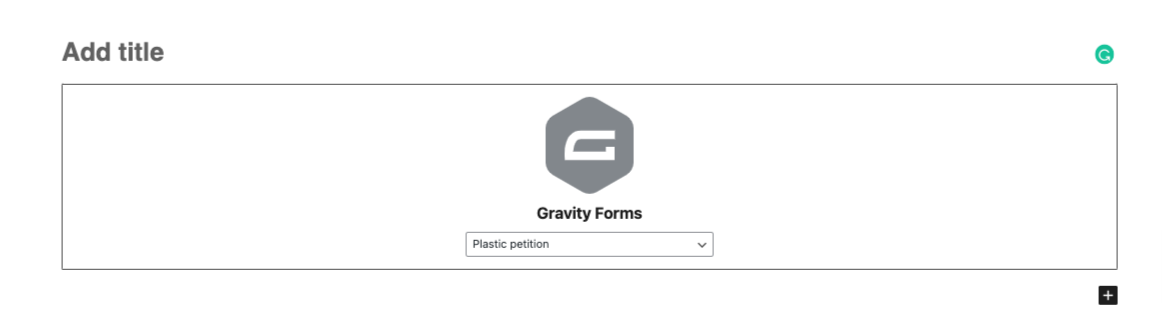
It’s done 🥳
Updating the settings of the form right from the page
If you need to update the settings of your form you can access theme directly from here, by clicking on the block’s command bar:

As always, don’t forget to preview your page and test the form before to publish your page!
Video tutorial (also to see what happens in Hubspot)
A quick tutorial on how to insert a form created in Gravity Forms in a P4 page and what a completed action looks like in your Hubspot account.
Slides here and bookmarks below 👇
00:03 – Insert your form in a P4 page
01:30 – What happens in Hubspot when someone fills a form on P4
03:00 – The form fields in hubspot (⚠️ do not change fields in Hubspot, but directly in gravity Forms!⚠️)
03:25 – Sending a “thank you” email from Hubspot
05:11 – Track performances of your form in hubspot