
Activate Gravity forms and connect it to Hubspot
Gravity Forms is enabled in all P4 sites. Activate it and connect it to your Hubspot account!
📚 Manage Planet 4 > Integrate P4 > Set Up the Form Builder > Activate and Connect to Hubspot
All Planet 4 sites have Gravity Forms installed already, with 2 add-ons installed by default: Quiz and HubSpot.
Activate Gravity forms in your site
To activate Gravity Forms, login to P4 as an admin and go to Dashboard > plugins. Look for Gravity forms plugins and activate these 2 plugins: Gravity Forms and Gravity Forms HubSpot Add-On 👇
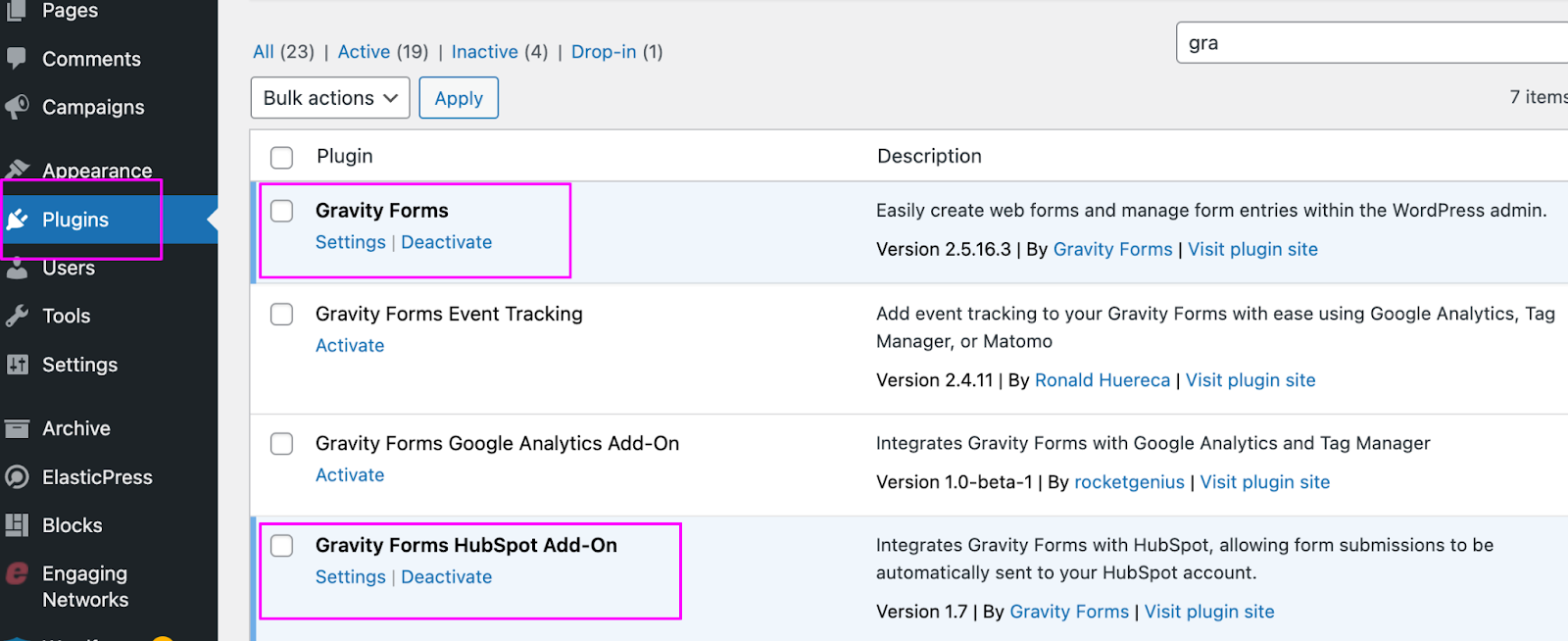
If you don’t see the Gravity Forms HubSpot Add-On there, just open a ticket with Global IT Support and the team will install it on your website.
Activating additional add-ons
Additional add-ons, such as the Quiz builder add-on, are also installed by default on every Planet 4 website. You have to activate each of them as well if you want to use them. If there are other add-ons for Gravity Forms that aren’t pre-installed, feel free to reach out!
Grant access to Hubspot and connect your account
Once they are activated, go to the Gravity Forms HubSpot Add-On settings, you’ll have to set-up the connection between gravity form and your Hubspot account.
Select “Click here to connect your HubSpot account“.
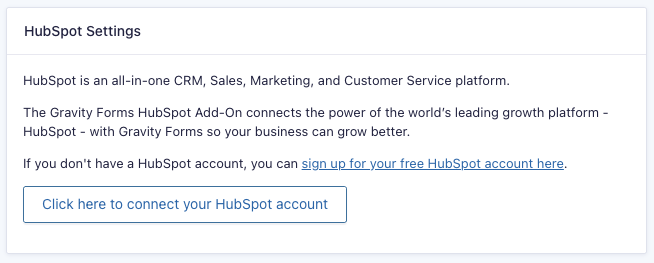
Click the Grant Access button on the HubSpot page to authorize the connection.
Once you have successfully authenticated your account, you will see the message Signed into HubSpot.

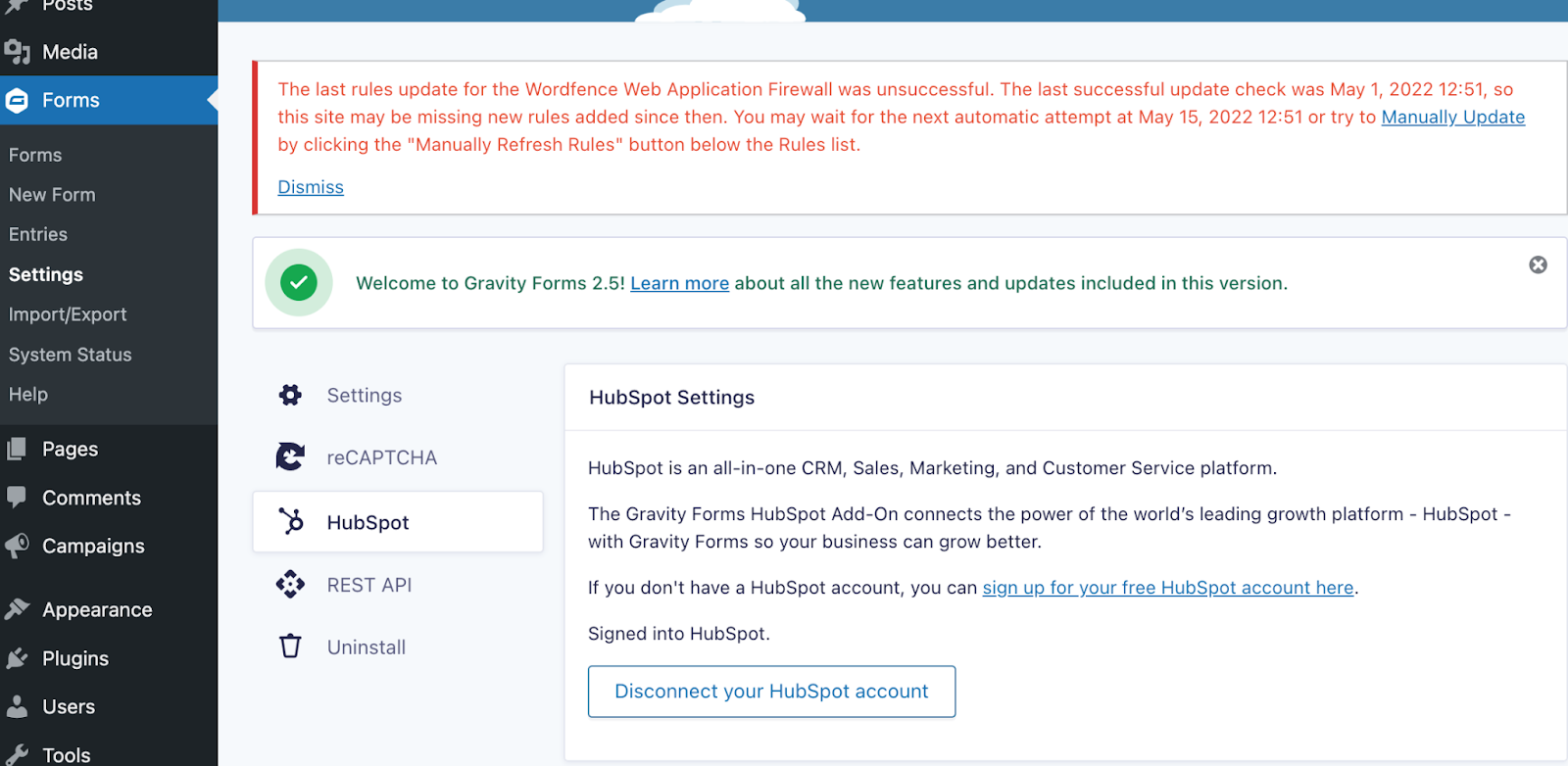
Ready for the Next Step
You are now ready to build forms with Gravity form!