
Footer
📚 Manage Planet 4 > Administration > Setting up the Basics > Footer
Footer Menu
🔎 Where? You can find this by going to Dashboard > Appearance > Menus
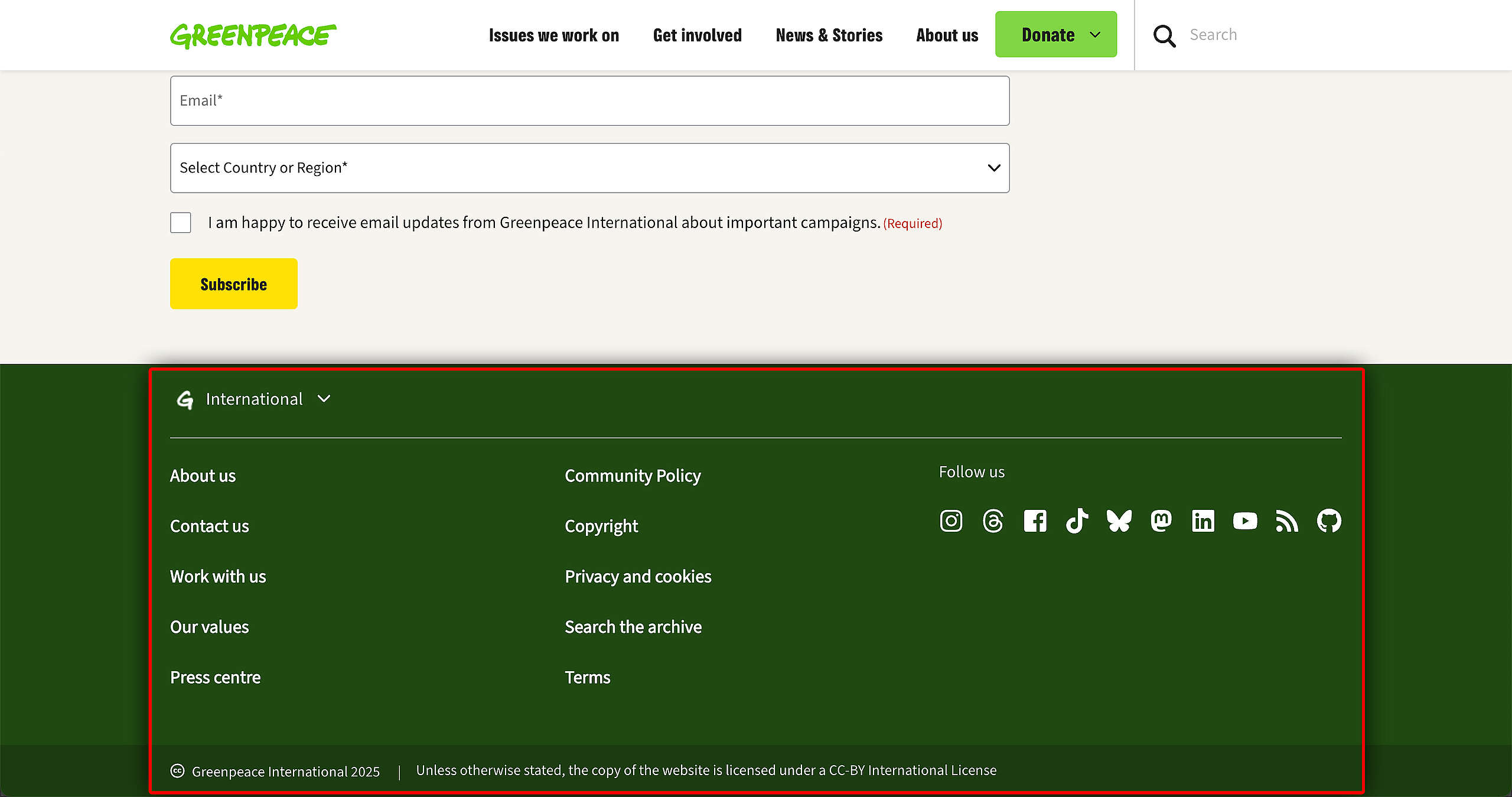
The footer is displayed at the bottom of each page across the website. It contains different elements such as a country selector, a site map link, utility and secondary links, as well as social media links. It is not possible to customise the country selector icon or arrow.
Adding Pages to the Footer Menu
To edit the footer menu, select which footer you would like to edit from the drop down menu. You can also create a new one but make sure to title it correctly.
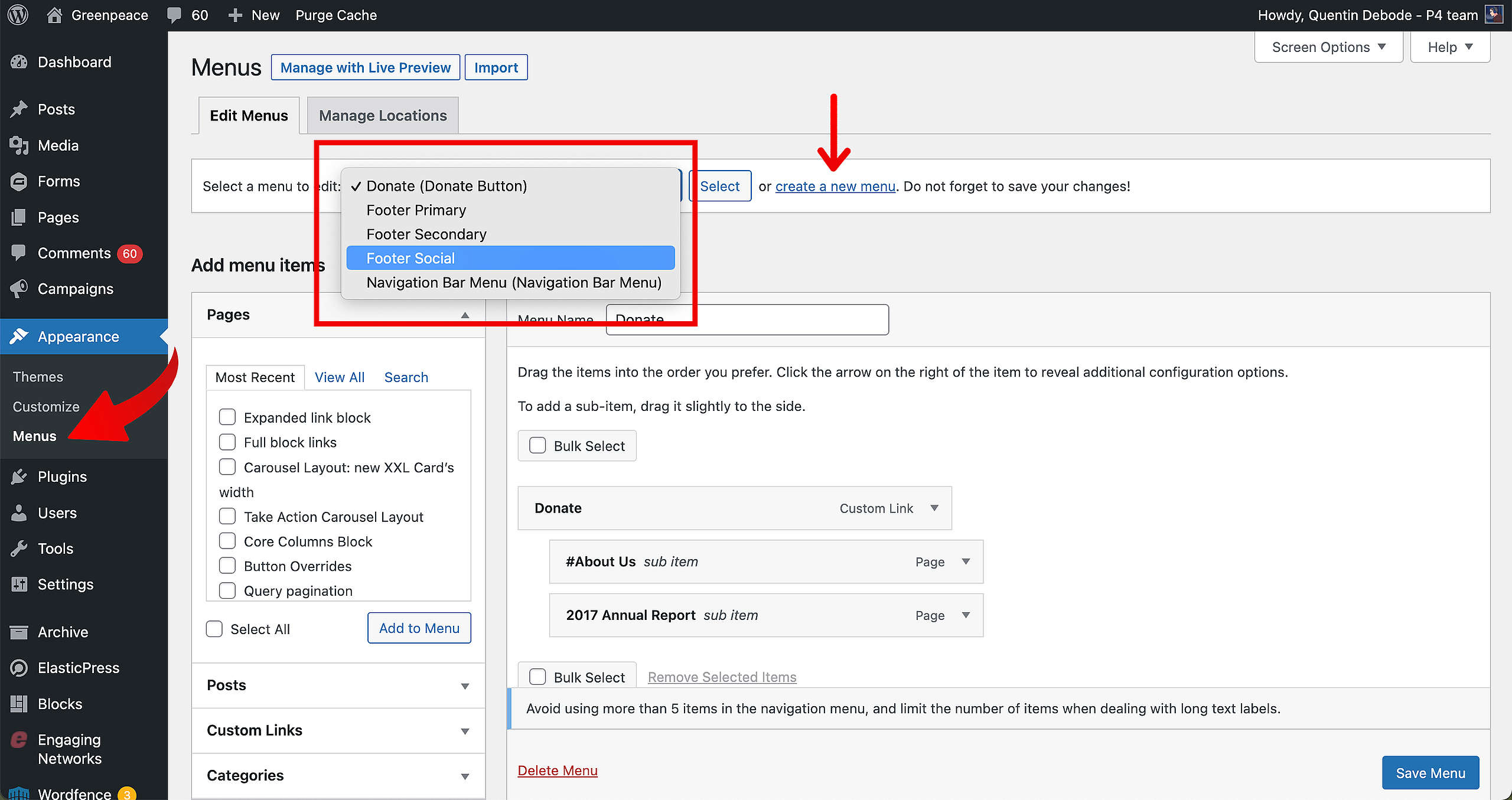
Select the Pages you want to add to your Footer Menu, and click on “Add to Menu”. You can then change the order by dragging and dropping the items in the order you want. Keep in mind that there are no dropdown options in the Footer Menu.
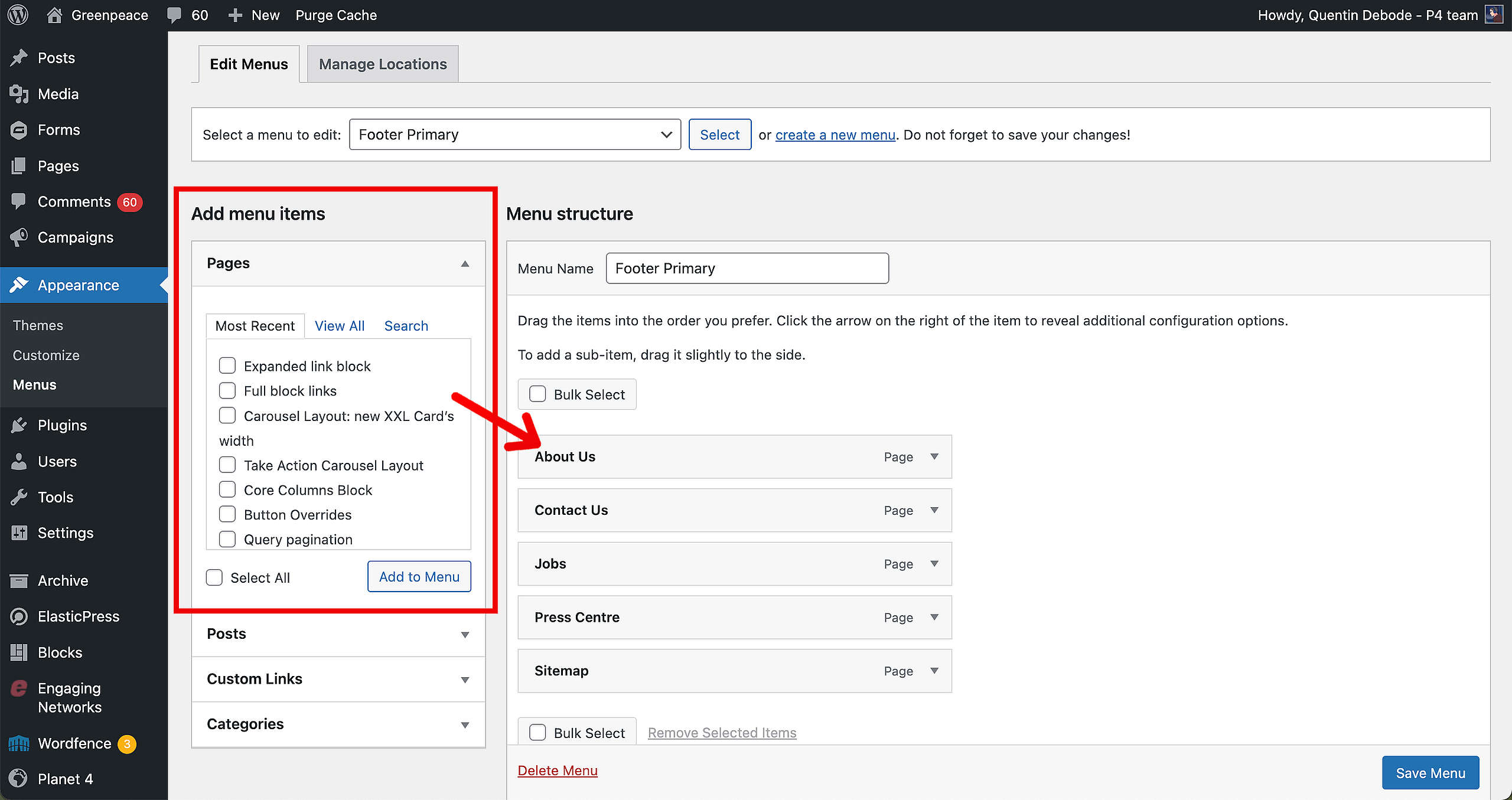
🤔 Key info: Even though there are two Footer Menus available (footer primary and footer secondary), the total number of entries will be displayed evenly into the two columns on your website.
Adding Social Media links to the Footer Menu
Adding links to Social Media channels is by creating a “Custom Links” item. Fill in the link and the text, and then click on “Add to Menu”.
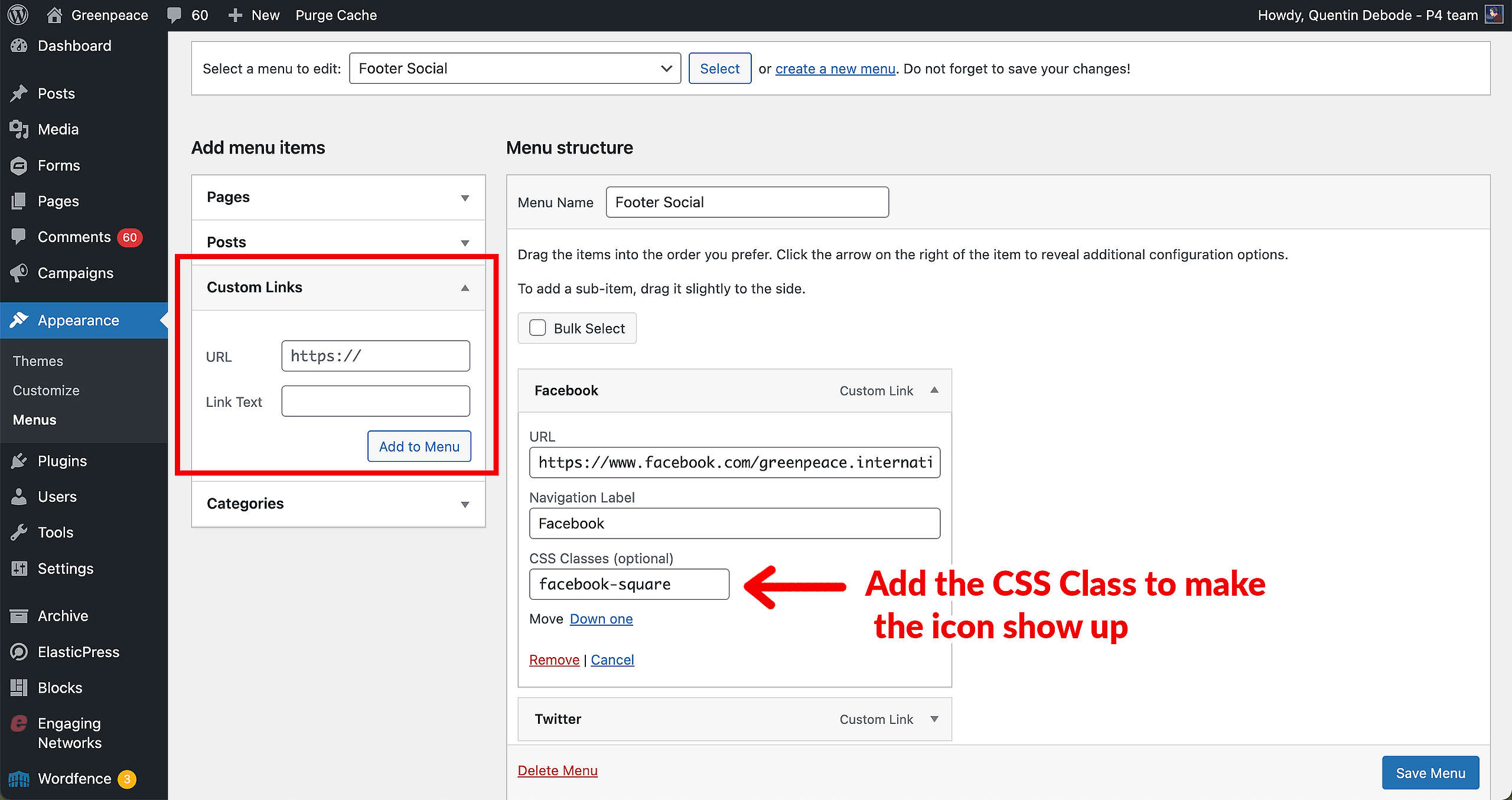
In the field “CSS Classes (optional)” add the name of the icon you want from the list of icons in the main theme. Here’s a list of a few Social Media channels to add in that box:
- For Facebook >> fa fa-facebook
- For Twitter >> fa fa-twitter
- For Youtube >> fa fa-youtube
- For Instagram >> fa fa-instagram
- For Whatsapp >> fa fa-whatsapp
- For Medium >> fa fa-medium
- For Spotify >> fa fa-spotify
- For LinkedIn >> fa fa-linkedin
- For TikTok >> fa fa-tiktok
Can’t see the CSS-class option?
Activate it on top, under the “Screen options” tab. See here how to do it:
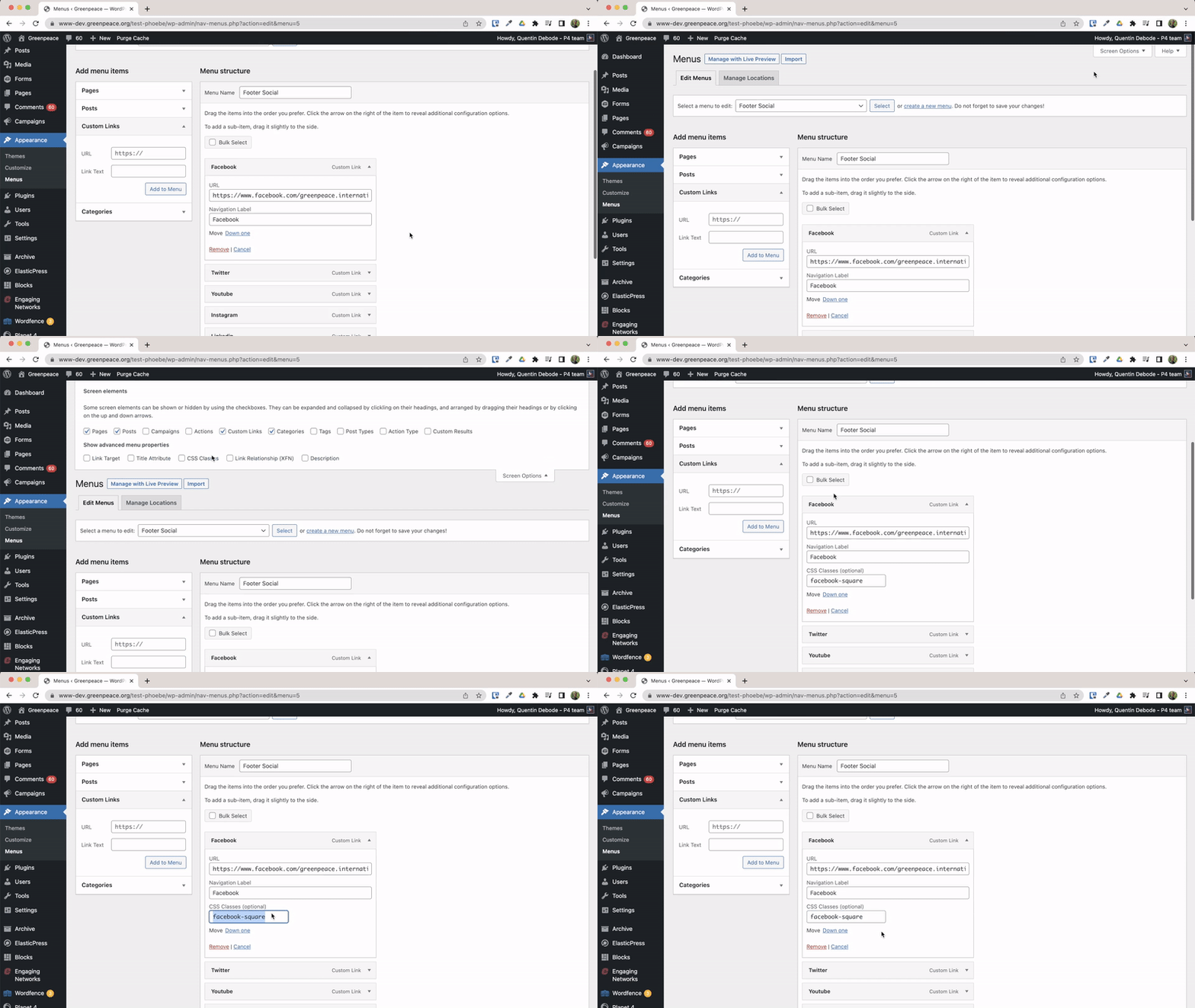
🤔 Key info: The template knows which menu to use only by the name. If you create a new menu, make sure to name your new menu “Footer Social”.
Copyright text
🔎 Where? You can find this by going to Dashboard > Planet 4 > Navigation
You can change the text of your Copyright bar in the Planet 4 settings tab, under “Navigation“.
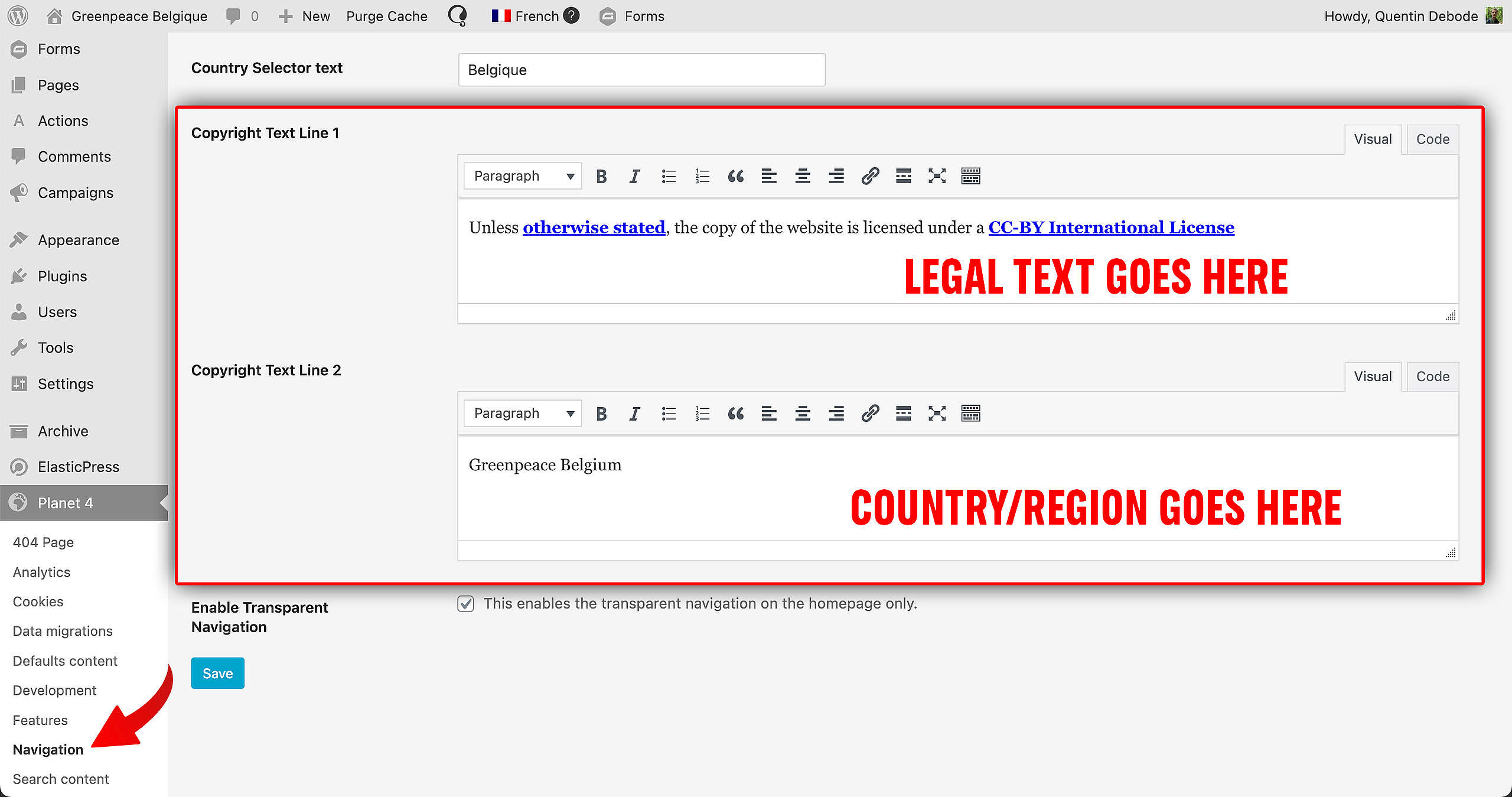
Generic Copyright usage (see “legal checks” for more info), which state the usage of your P4 site. Below the text used for the International site:
- Unless otherwise stated, the copy of the website is licensed under a CC-BY International License
This text appears below the Footer. Here’s what it looks like in the front end of the International site.

🤔 Key info: You don’t need to change the year. The date gets updated automatically!