
Create Synced Patterns on Planet 4
Say goodbye to repeating yourself! Quickly insert a Synced Pattern wherever you need it.
📚 Create Content > Patterns > Synced Patterns
What are Synced Patterns?
In short, think of it as “Reusable Blocks”. With Synced Patterns, admins get to create a collection of Blocks and save them as Patterns to use throughout your Planet 4 sites. Just as you would add a Block or a P4 Pattern, you can use your own customized Patterns in the pages. So building and editing pages become much easier and quicker, without the need to start from scratch every time.
Create
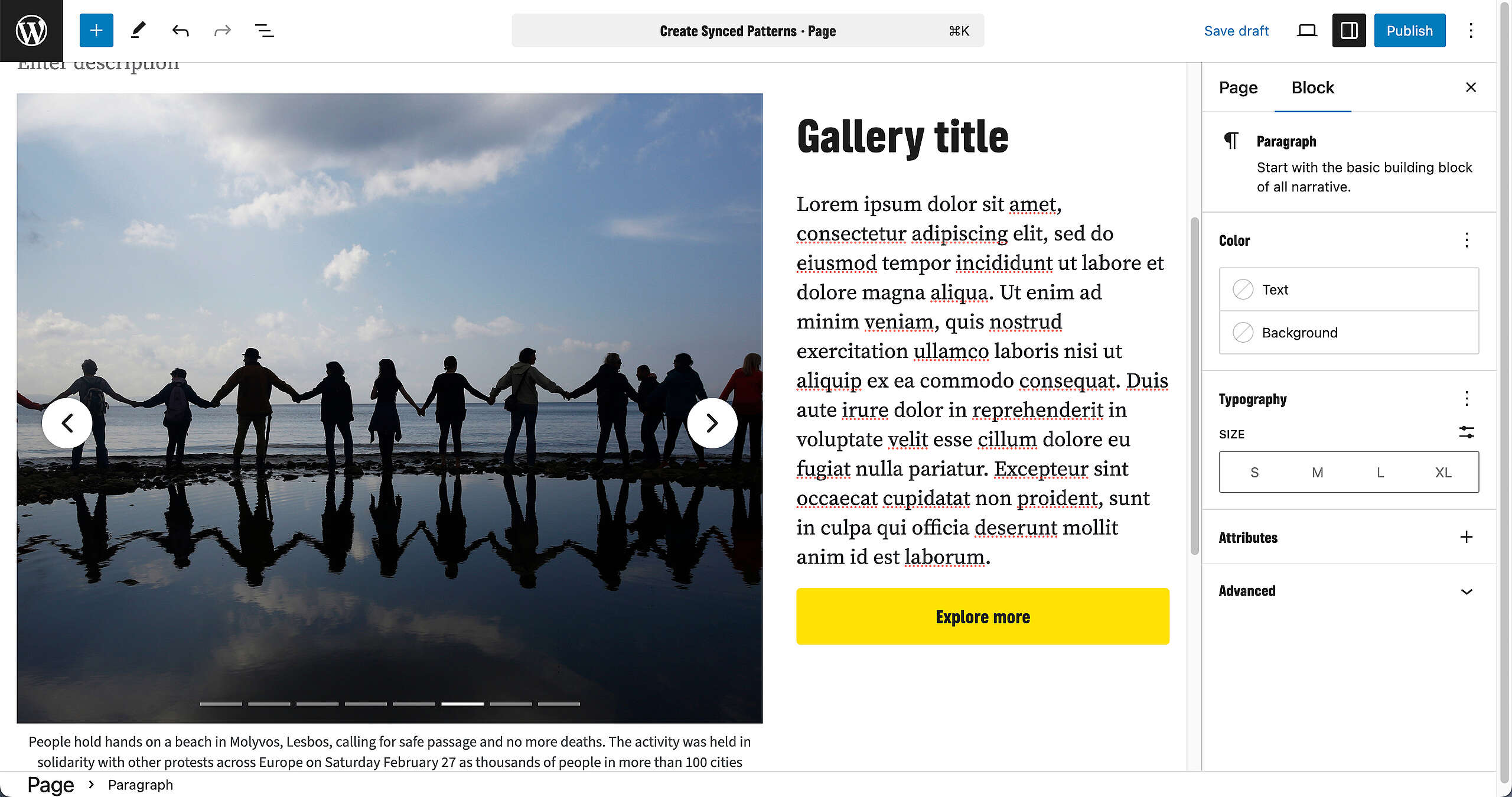
Let’s say we want to transform this collection of Blocks into a Synced Pattern. There’s a gallery on the left, a Heading on the right with a Paragraph and Button. Make sure you select the most outer Pattern (in this case a Column, split 66/33).
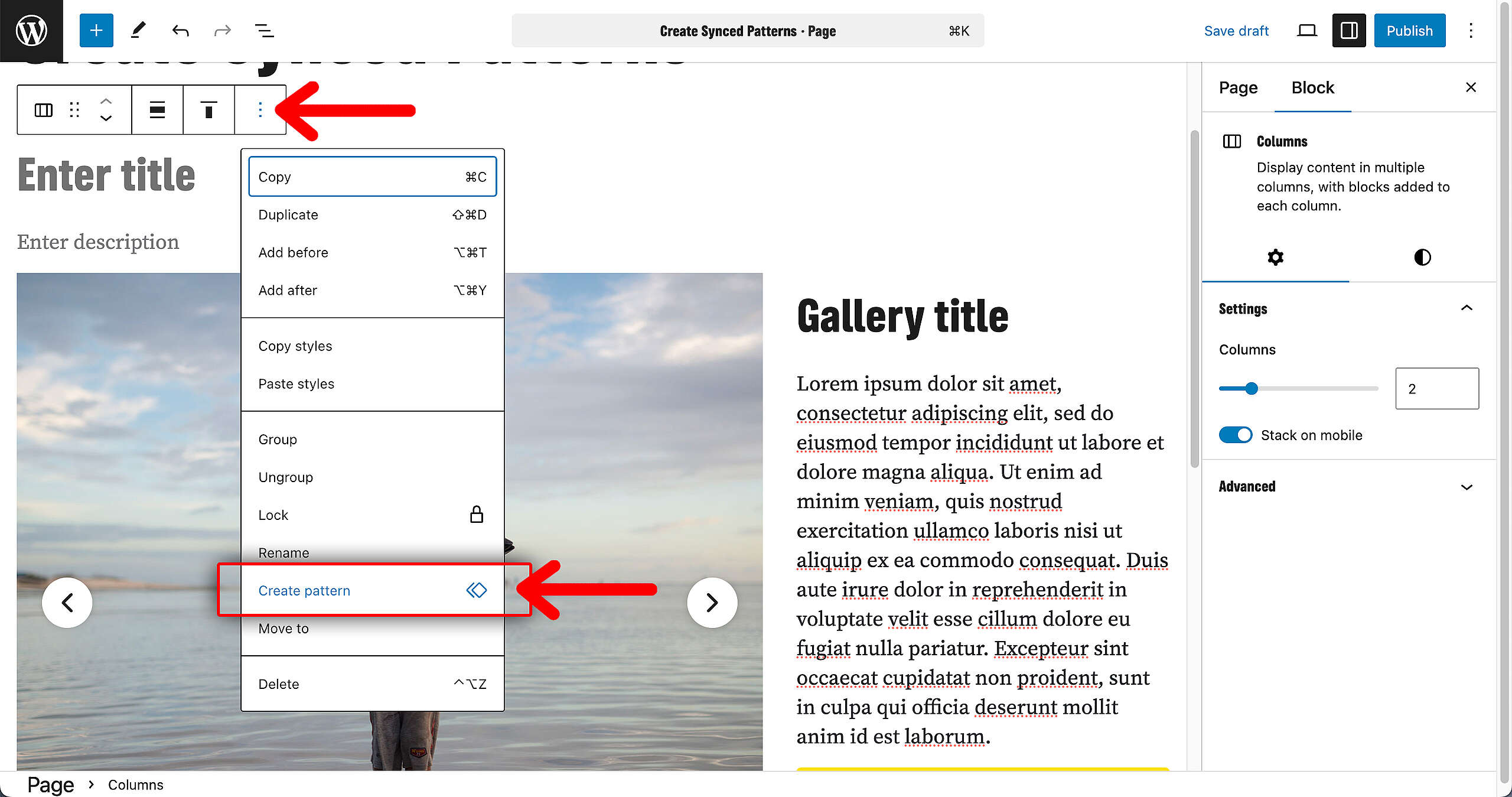
Once that has been selected, go to the three dots on the options bar that has appeared. In that dropdown menu, click on Create pattern.
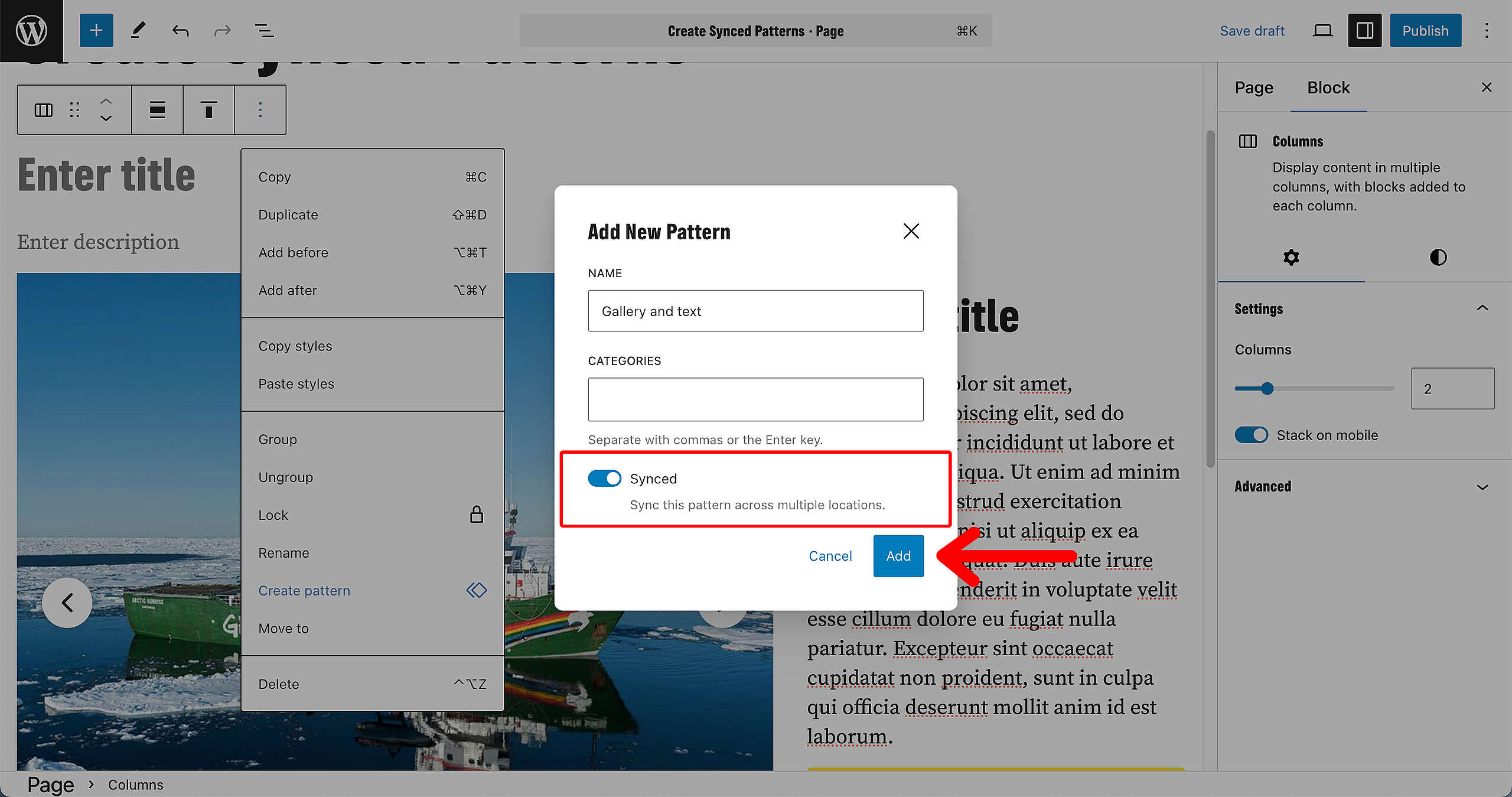
A pop-up has appeared! Fill in a name for your new Synced Pattern, and an optional category. Make sure that the Synced toggle is on! And then click on Add.
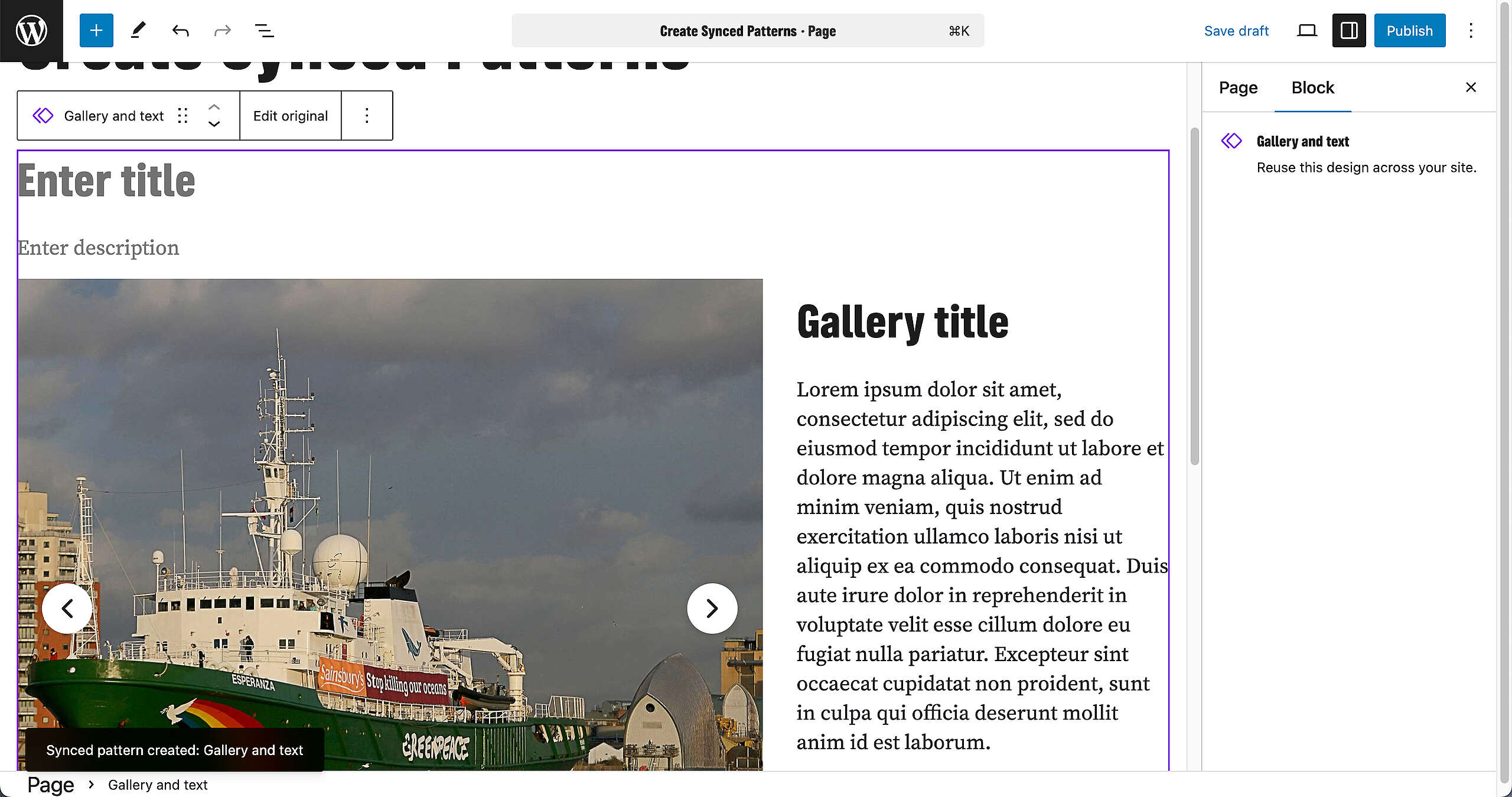
From now on, you can see that your collection of Blocks has been transformed into a Synced Pattern! Free to reuse across your Planet 4 website.
You can find your new Synced Pattern on the top left, under Patterns > My Patterns.
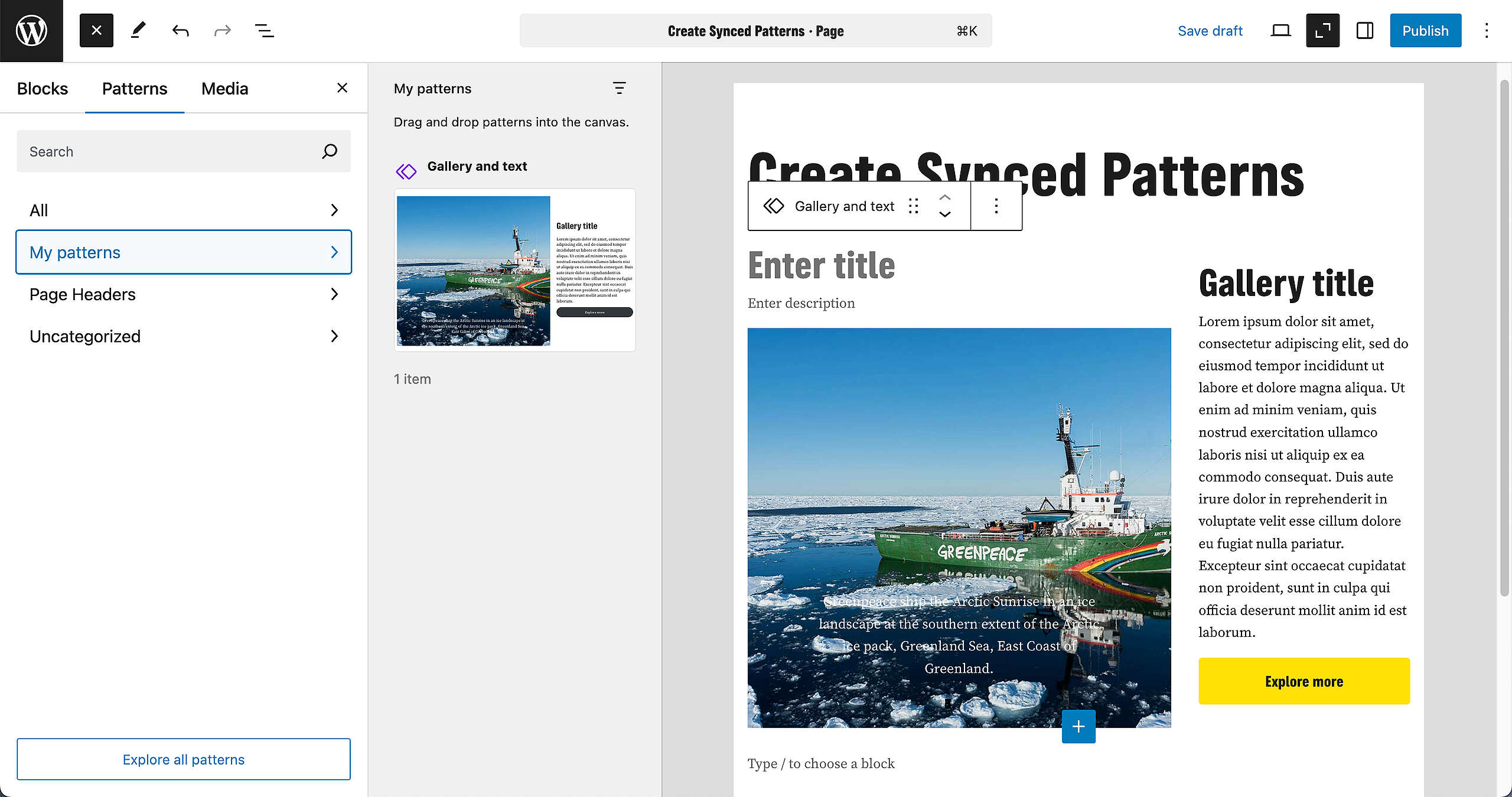
In the screenshot above, the newly created Sync Pattern is located under “My Patterns”. That’s because no category was filled in during the previous steps. If you want to organize your Patterns better, make sure to create categories.