
Replacing Images and Files whilst Keeping the URL
Thanks to File Replacements, you can replace files and images, and keep that same URL.
📚 Create Content > Extra > Replacing Images and Files whilst Keeping the URL
We’ve all been there. Uploading a report, sending the link to someone but then things have to be updated in the report later on. This means that everyone who has the link you shared earlier now has an outdated report. No more, thanks to File Replacements, you can replace a file (and image) and keep that same URL.
How To
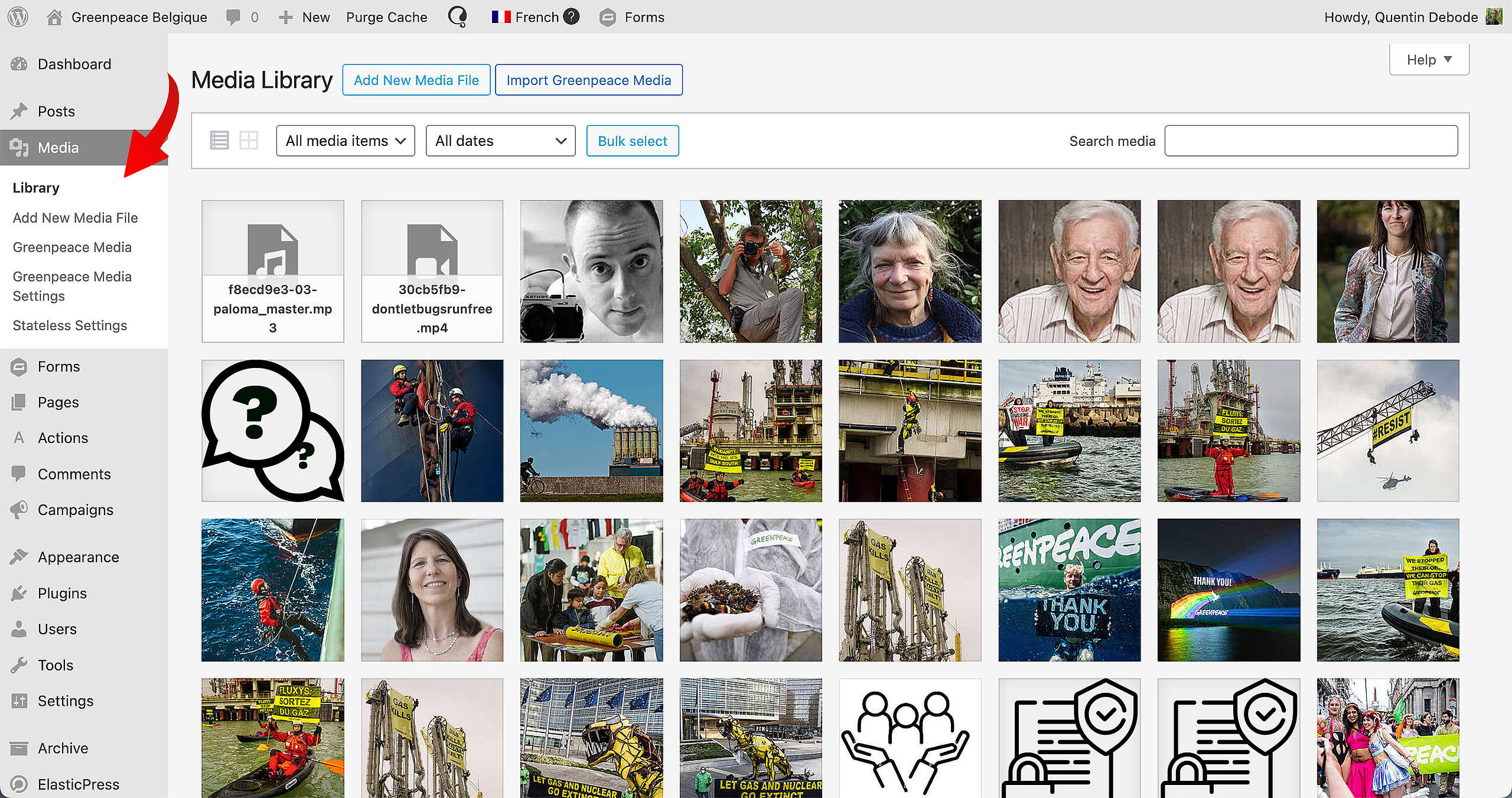
First, find the file you want to replace in the Media Library. Click on it so you open the detailed view.
Once that is open, you’ll be able to find the Replace Media button on the right (might need to scroll a little bit, depending on how big your screen is). Click on that and select the file you want to replace the original one with.
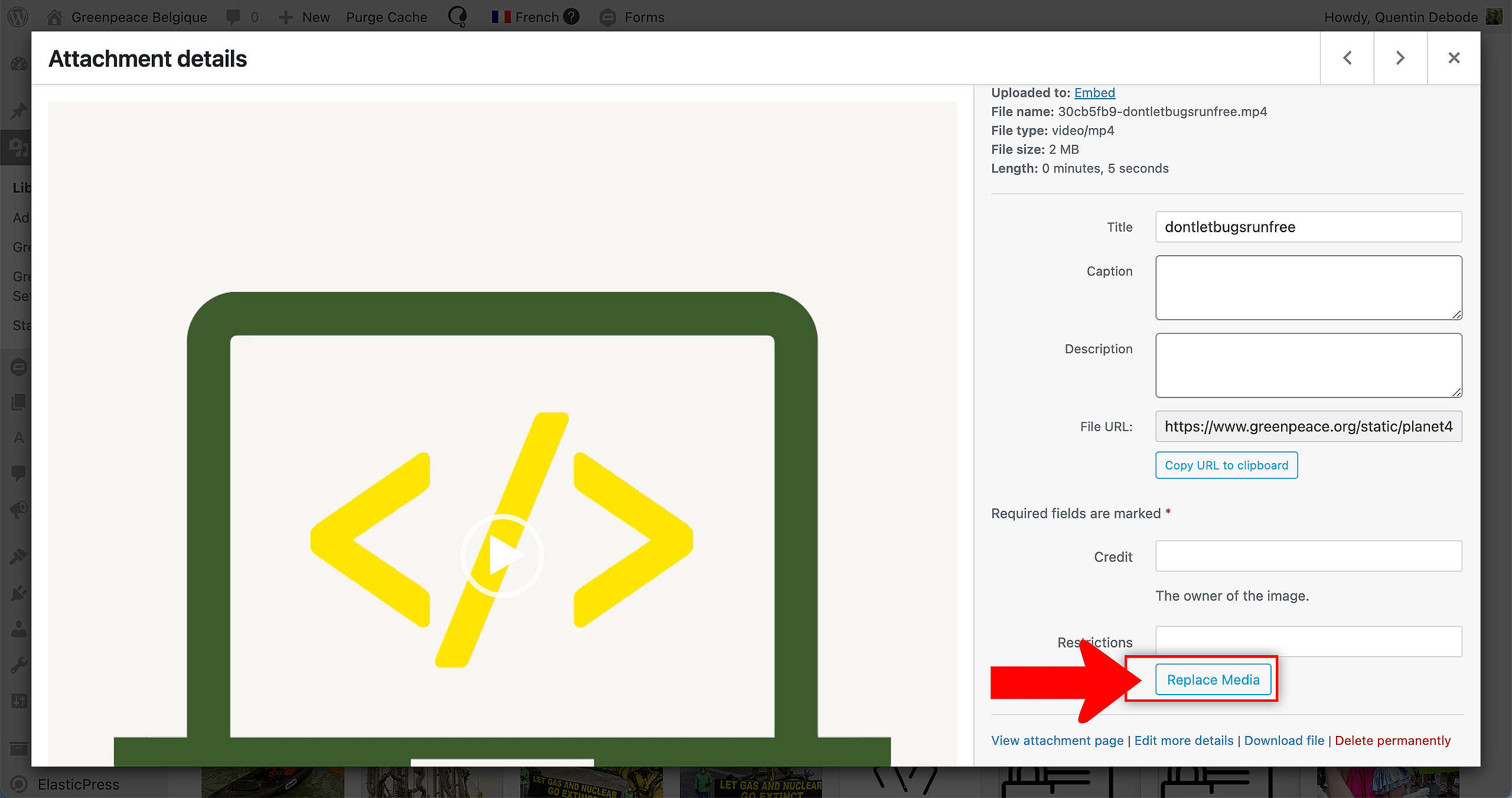
As soon as the upload is processed, the image/file will be replaced at the same URL.
👀 Keep in mind: This may require some browser cache cleaning.