
Manage your cookies preferences

Please select which cookies you are willing to store.

Performance cookies Always enabled

These cookies will allow us to collect statistical and anonymised data, such as how long users stay on a page or which links are clicked, to ultimately improve Greenpeace.org and provide you with a better experience of our website. The acceptance of these cookies will also allow you to hide the cookies acceptance banner.

In addition to the Statistical cookies mentioned above, we may also place in your browser cookies from third-party services (e.g. Facebook or Google) to track the effectiveness of our online marketing strategies and to deliver adverts more relevant to you and your interests. These cookies may also be used to serve advertising to you after you have left our site (retargeting cookies).

This site works great in a cookie-free experience. To make it better, however, we use some cookies. You can read the Privacy Policy and change your cookies settings anytime.

📚 Create Content > Blocks > Media and Text

Purpose: Combine visual elements with texts (and even buttons!) and create powerful combinations. You can find the block under the Media Blocks or the Most used. 
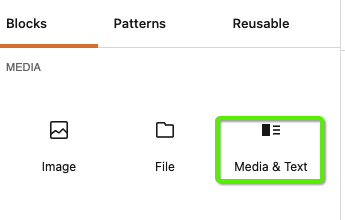
Media & Text block

The editing mode works in WYSIWYG, meaning changes are made directly in the interface.
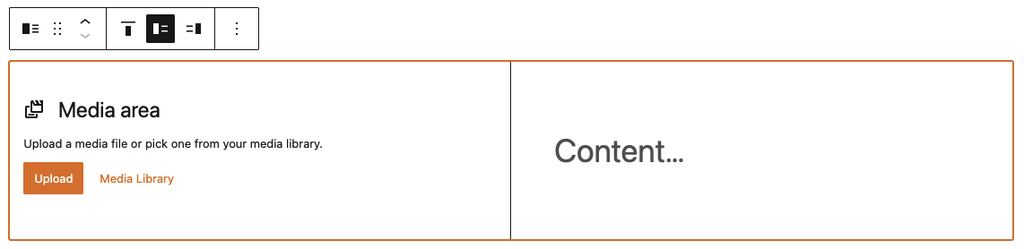
The visual editor of the Media & Text block

Editors can select images or short videos from the P4 Media Library in the “Media” area, and Title, paragraph and even buttons block in the “Content” area. See the .gif below.
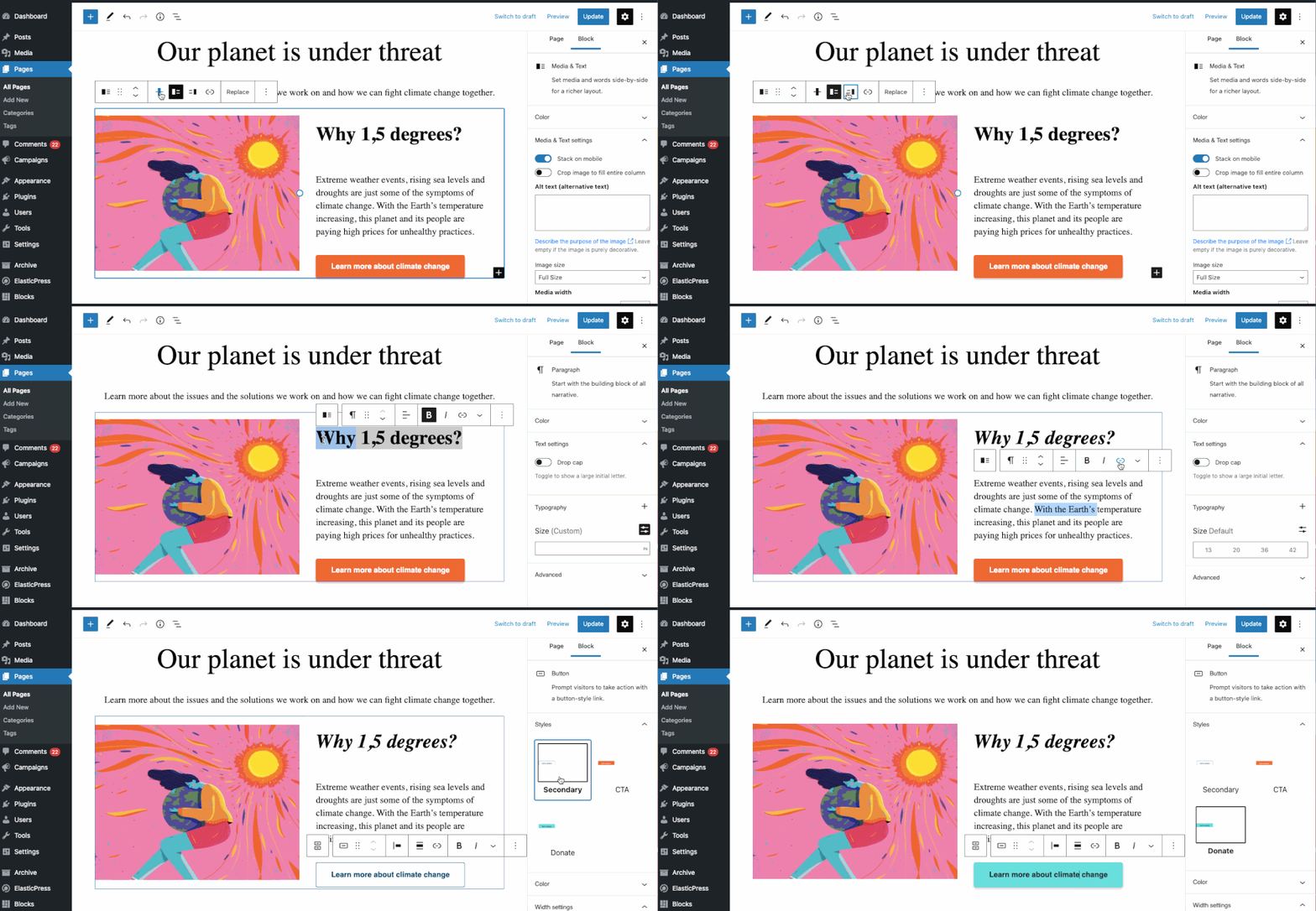
Editor mode of the Media & Text block, with the various alignment and content options

If a Paragraph block is populated, editors can even select a “Drop cap” for a more impactful narrative
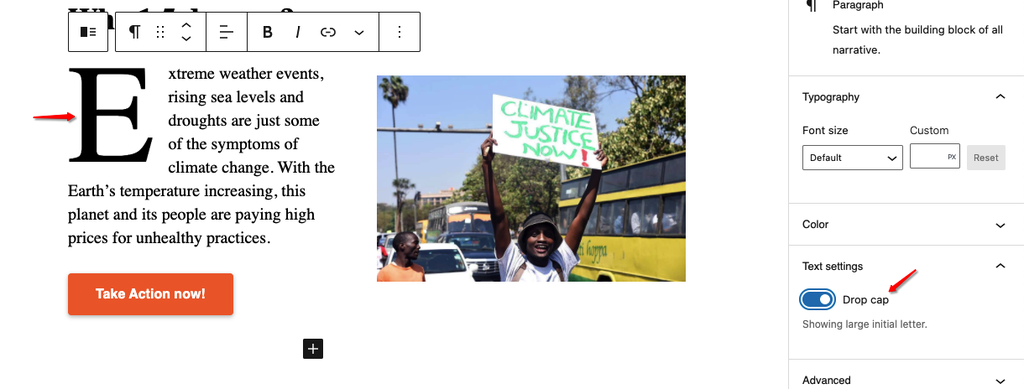
The Drop Cap command on the Media & text block

Video

And here’s a video intro on the Media & Text block 👇

Was this helpful?

Yes
No
Thanks for your feedback!